StepCert Buy for $99 a year

Step-by-step guides · LMS courses · Proof of competence

Show them once. Prove they can do it.

  • Record once. Every click becomes a written step with the target highlighted.
  • Share anywhere. Word, PDF, PowerPoint, web page, video guide, and SCORM or xAPI courses.
  • Prove competence. Learners do the task themselves in your LMS and earn a certificate.
  • Hand it on. A colleague opens the editable file and finishes it. Nobody starts again.
  • Stay private. Your screenshots never leave your computer.
Try the live demo

One price with everything included, and a 30-day money-back guarantee. No cloud account, no upload, no AI service.

Try the real outputs

One recording of a sample HR task, exported by StepCert. Play the course, watch the video, open the documents.

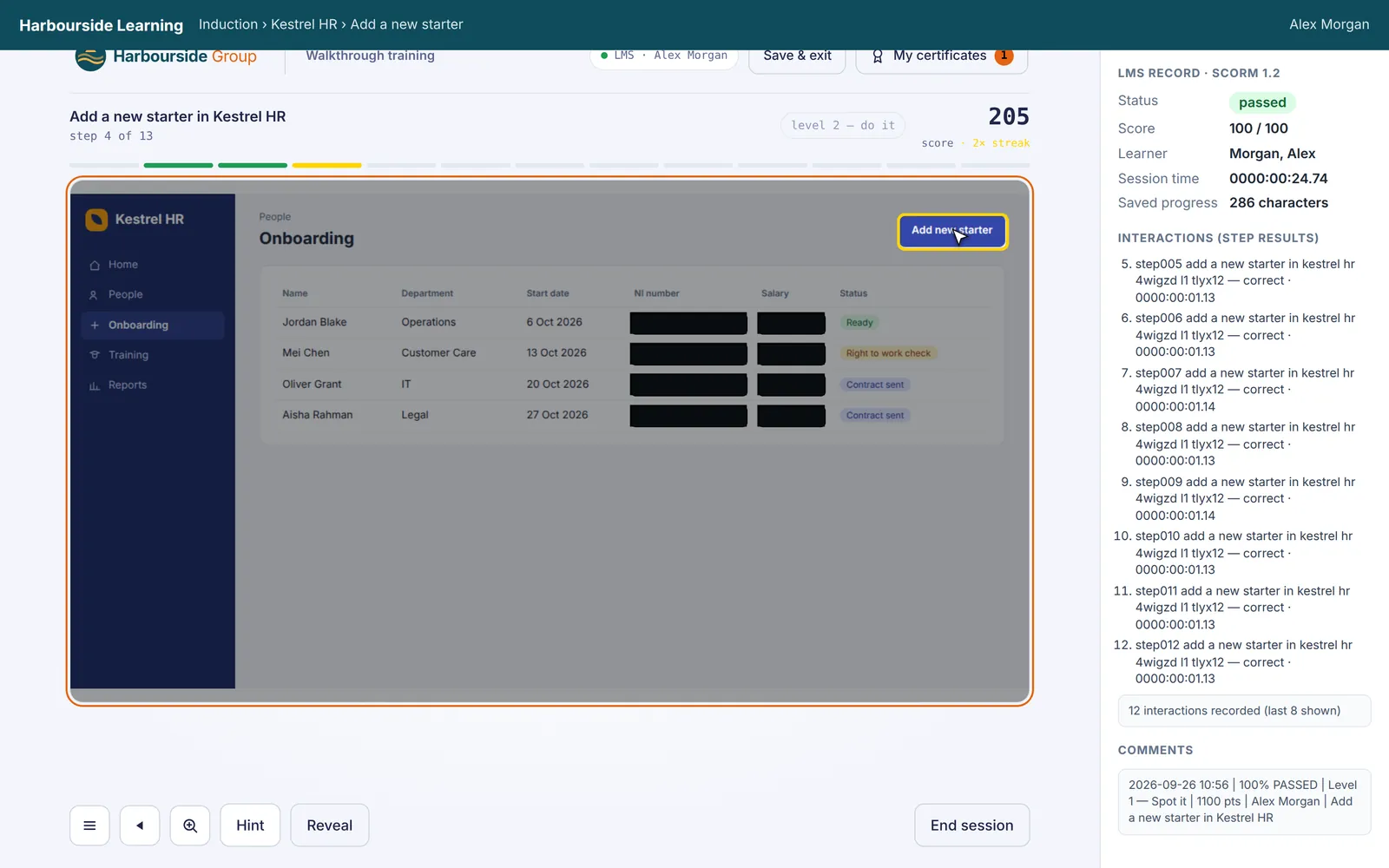
Level 2 of the demo course inside an LMS, with a hint showing where to click and the LMS record on the right.

Interactive · SCORM 1.2

Play the LMS course

Find each control from memory, type the values, and earn a certificate. The panel on the right shows what your LMS records as you go.

  • Watch
  • Level 1: Spot it
  • Level 2: Do it
  • Level 3: Nail it
  • Certificate
  • LMS record

Video · 1 min 13 s

Watch the video

Jump to any step:

See every demo file, including SCORM 2004, xAPI, cmi5, Markdown, JSON and the animations

Why StepCert

  • Private by design

    Recordings stay in your browser on your computer. Nothing is uploaded to us or anyone else, so screenshots of HR, finance and client systems never sit in a third-party cloud.

    Why that matters for compliance
  • Editable files you can hand on

    Save a walkthrough as one .walk file. A colleague opens it on their computer and carries on: rewords steps, records the part only they know, and rebuilds the course. Nobody starts again.

    How the hand-off works
  • Certified proof of competence

    The course makes people do the task: find each control from memory, type the real values, then repeat until it's right first time. Passing issues a certificate, and your LMS records every step.

    See the three levels
  • One recording, every format

    Word, PDF, PowerPoint, web page, Markdown, JSON, animated PNG and WebP, video, a video guide with clickable steps, and SCORM 1.2, SCORM 2004, xAPI and cmi5 courses. All from the same steps, all updated by exporting again.

    See every format

Slides prove someone sat through it. StepCert proves they can do it.

Most system training is a slide deck or a screen recording, followed by a tick box. It shows attendance, not ability, and the first time a new starter tries the real system, they're on their own. StepCert turns the same few minutes of recording into practice that checks the learner can actually do the task, and evidence you can show an auditor.

The slideware way

  • Screenshots pasted into slides by hand, out of date after the next release
  • Learners click “Next” until the deck ends
  • The LMS records that the file was opened
  • Changing one step means rebuilding the course in an authoring tool
  • Customer data in the screenshots, stored in someone's cloud

The StepCert way

  • Do the task once; every screenshot, box and sentence is made for you
  • Learners find each control, type the values and choose the options themselves
  • The LMS gets pass or fail, a score and every step: right first time, hints, clicks and time
  • Fix a step, build again, and the LMS updates the same course with learner records kept
  • Private details redacted, and nothing leaves your computer until you export it
  • Inductions and onboarding New starters prove they can use each system before they're given live access.
  • Compliance and audit Certificates, step-level LMS records and time-stamped evidence of each screen.
  • System rollouts Record the new process once, then send the guide, the video and the course on launch day.
  • Standard operating procedures Keep the SOP as an editable file that the process owner can update in minutes.
  • IT and service desks Answer “how do I…?” with a web page or a video guide that opens at the right step, instead of a call.
  • Customer and partner training Branded guides and courses in your client's format, not yours.

How it works

  1. Record

    Press Start recording and use the web app as you normally would. Each click, choice or typed value becomes a step with a screenshot and a sentence, such as “Choose Finance from Department”. The side panel shows every step the moment it lands.

    • Works across tabs and windows, and inside frames
    • Takes a “what you should see next” picture after a page changes
    • Password and card fields are recorded as “Enter your Password”, never the value
    • Capture now, Add note, pause, undo and insert steps in the middle, all from the panel or the keyboard
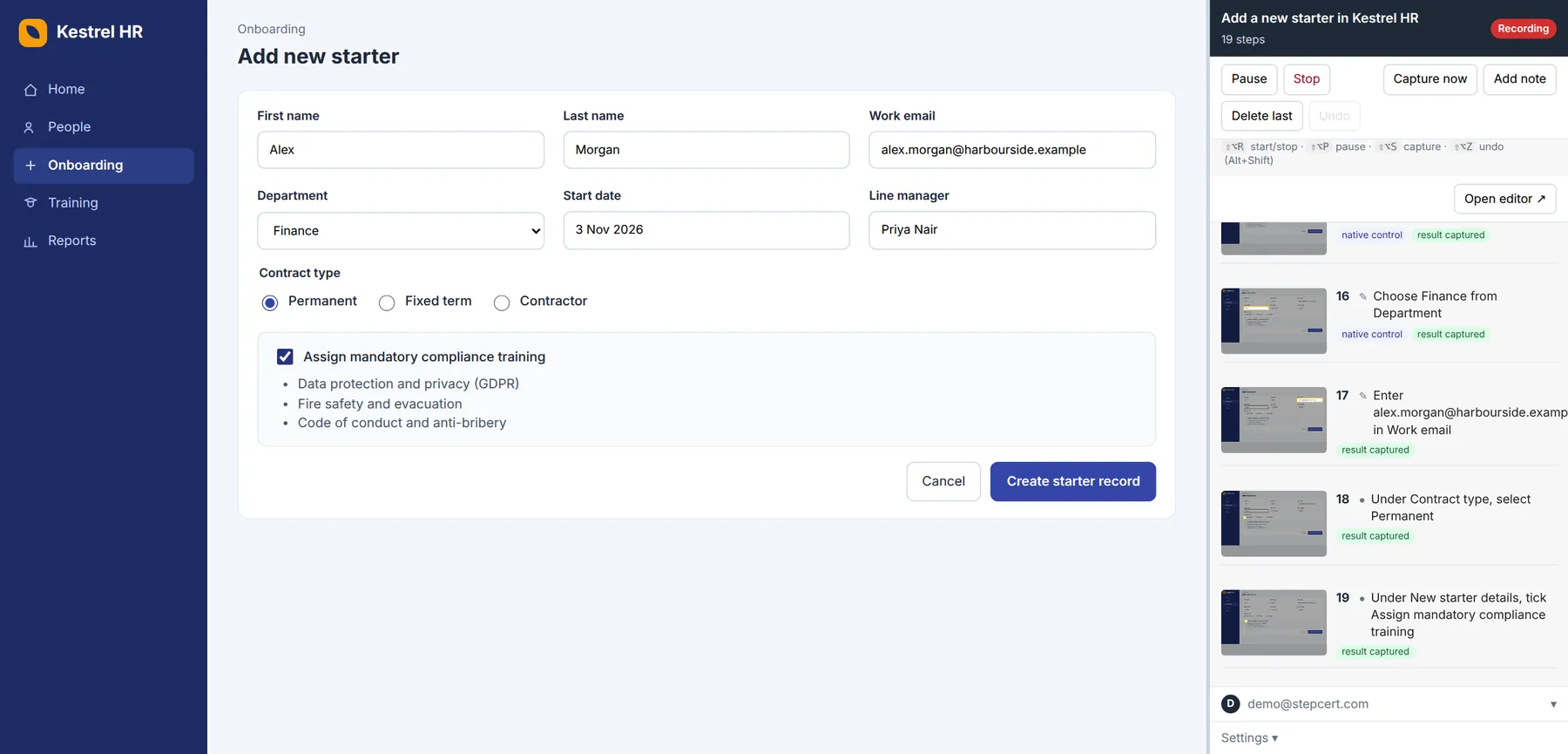
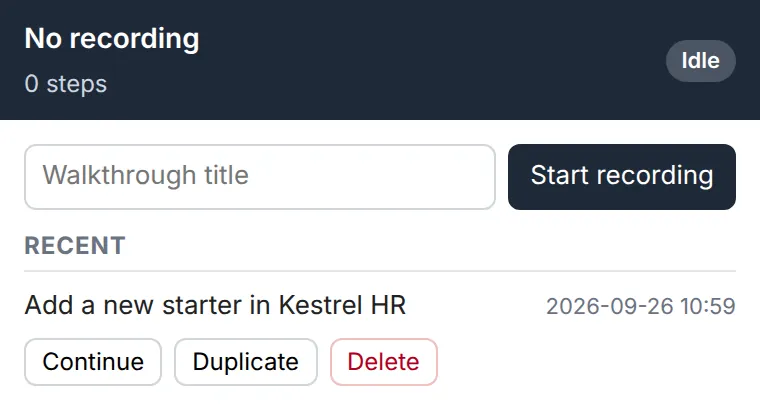
    The Kestrel HR new starter form filled in, next to the StepCert side panel recording 19 steps with thumbnails and labels such as native control and result captured.
    Recording in the browser, with the side panel open.
  2. Tidy up

    Drag steps into order, reword them, or merge several clicks into one numbered picture. Move the highlight, set the close-up, crop, or draw black boxes over anything private. Dropdown lists that a screenshot can't see are drawn back in, with the chosen option highlighted.

    • Undo and redo for every change, and find and replace across all steps
    • Paste an image or grab another window to add a step from a desktop app
    • Notes with headings, bullet points and links, and private notes that are never exported
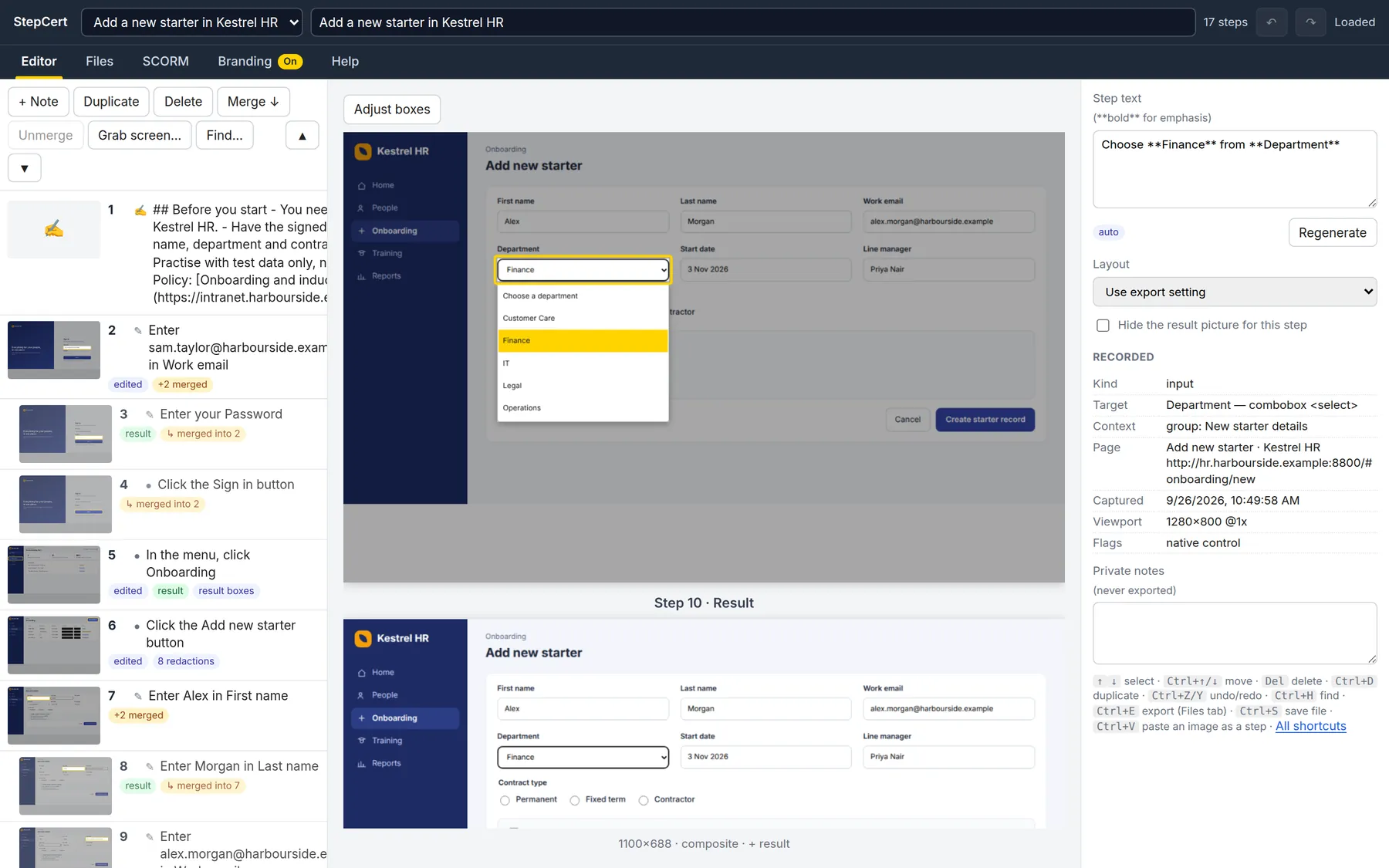
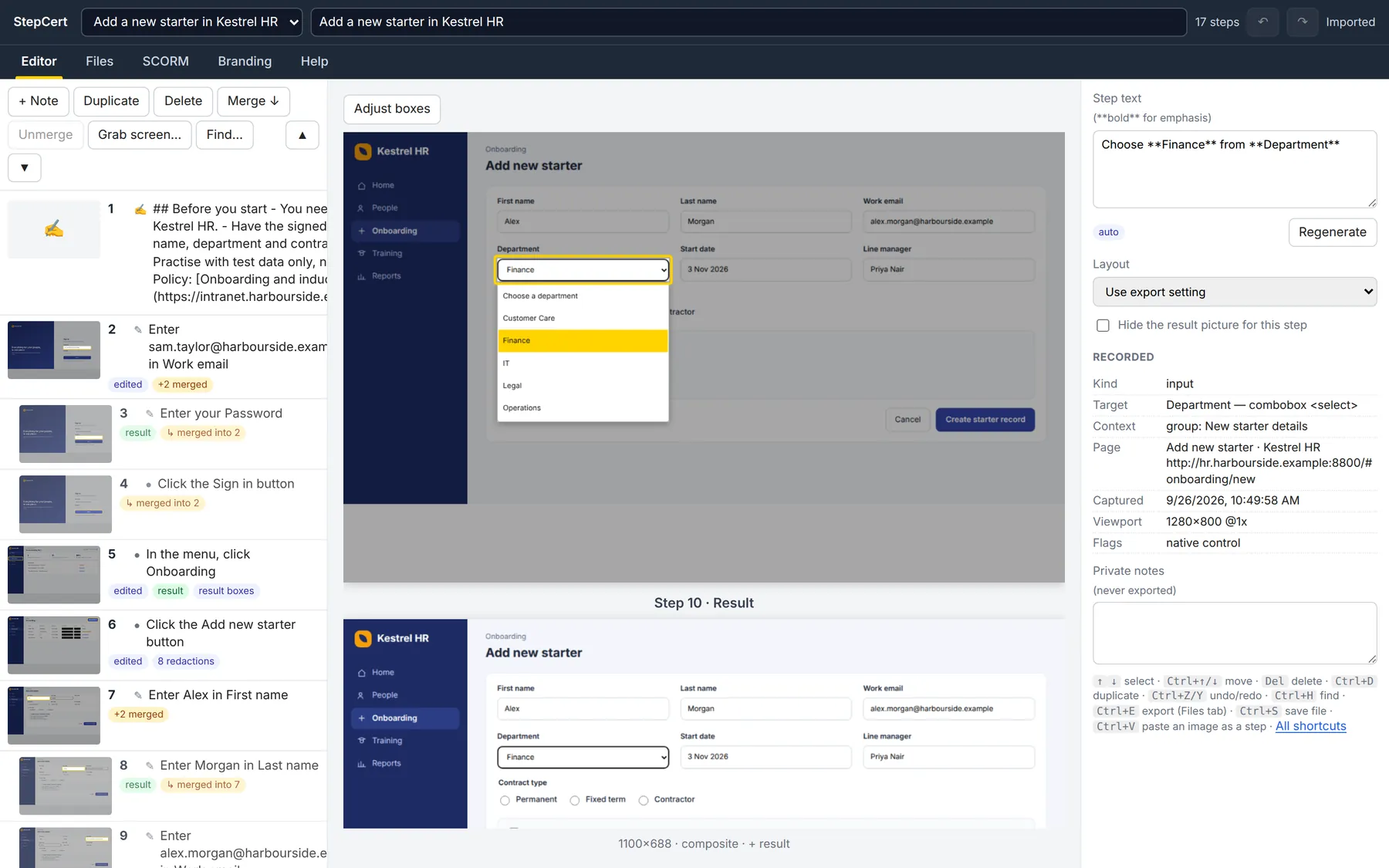
    The editor showing the step “Choose Finance from Department” with the dropdown list redrawn and Finance highlighted in yellow, and the result picture below.
    StepCert redrew this dropdown list. The screenshot itself only showed the closed box.
  3. Share it

    Export the same steps as a Word document, a PDF, a PowerPoint deck, a web page that works offline with a list of steps down the side, a Markdown bundle, JSON, an animation or video that plays the guide by itself, or a video guide: the video with every step listed beside it. Your logo and colours go on all of them.

    • Every picture has alt text written for screen readers
    • Export as often as you like; your steps are never changed
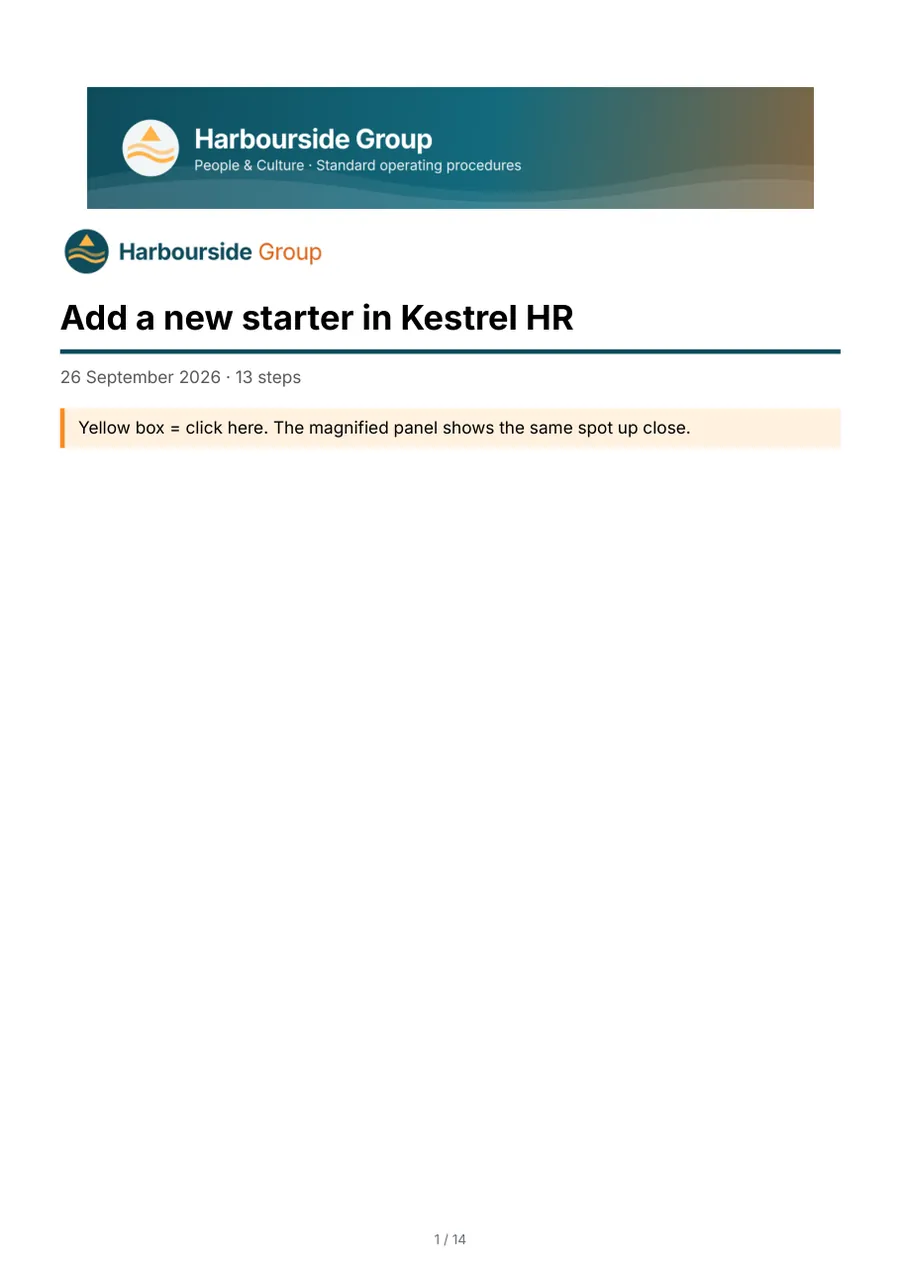

    The PDF title page with the Harbourside Group banner and logo, the title Add a new starter in Kestrel HR, the date, 13 steps and the legend.
    PDF, title page
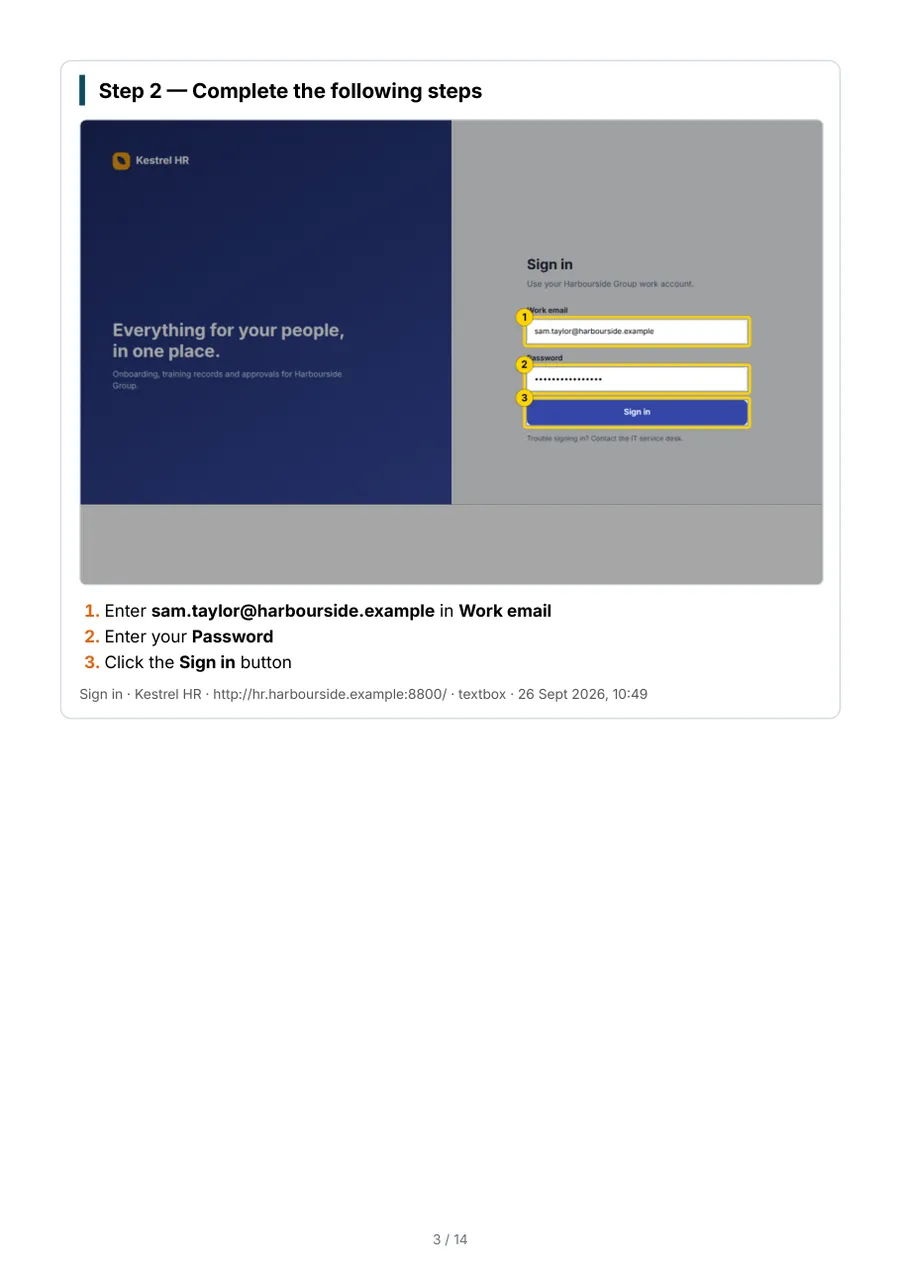
    A PDF page for step 2, one picture of the sign-in screen with three numbered boxes and a numbered list of the three instructions.
    PDF, a merged step
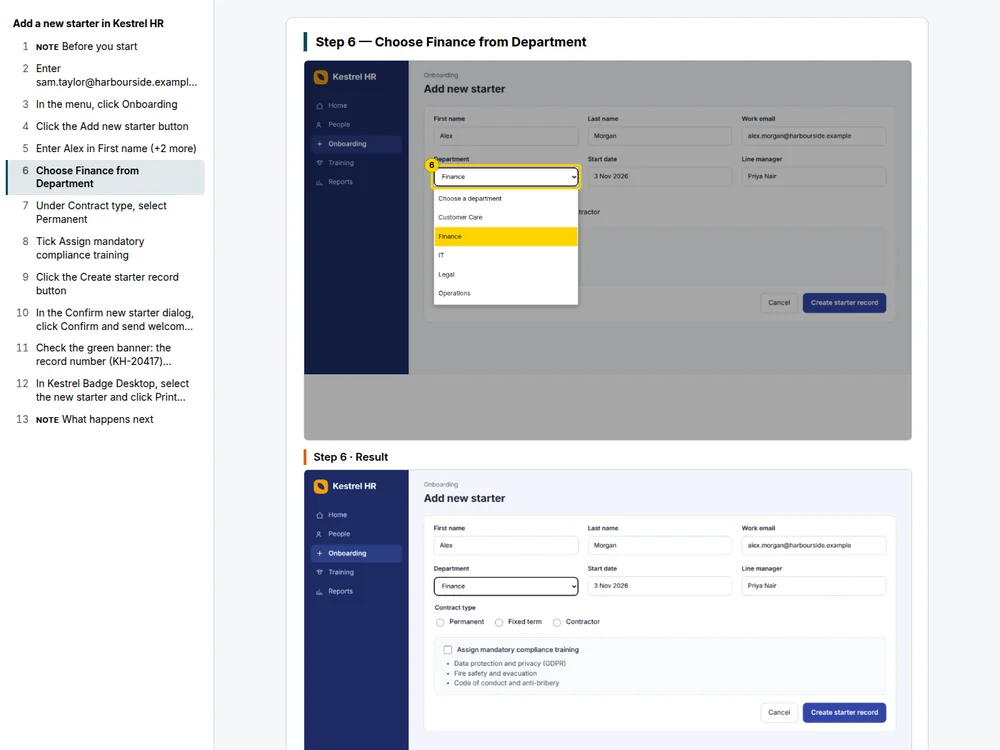
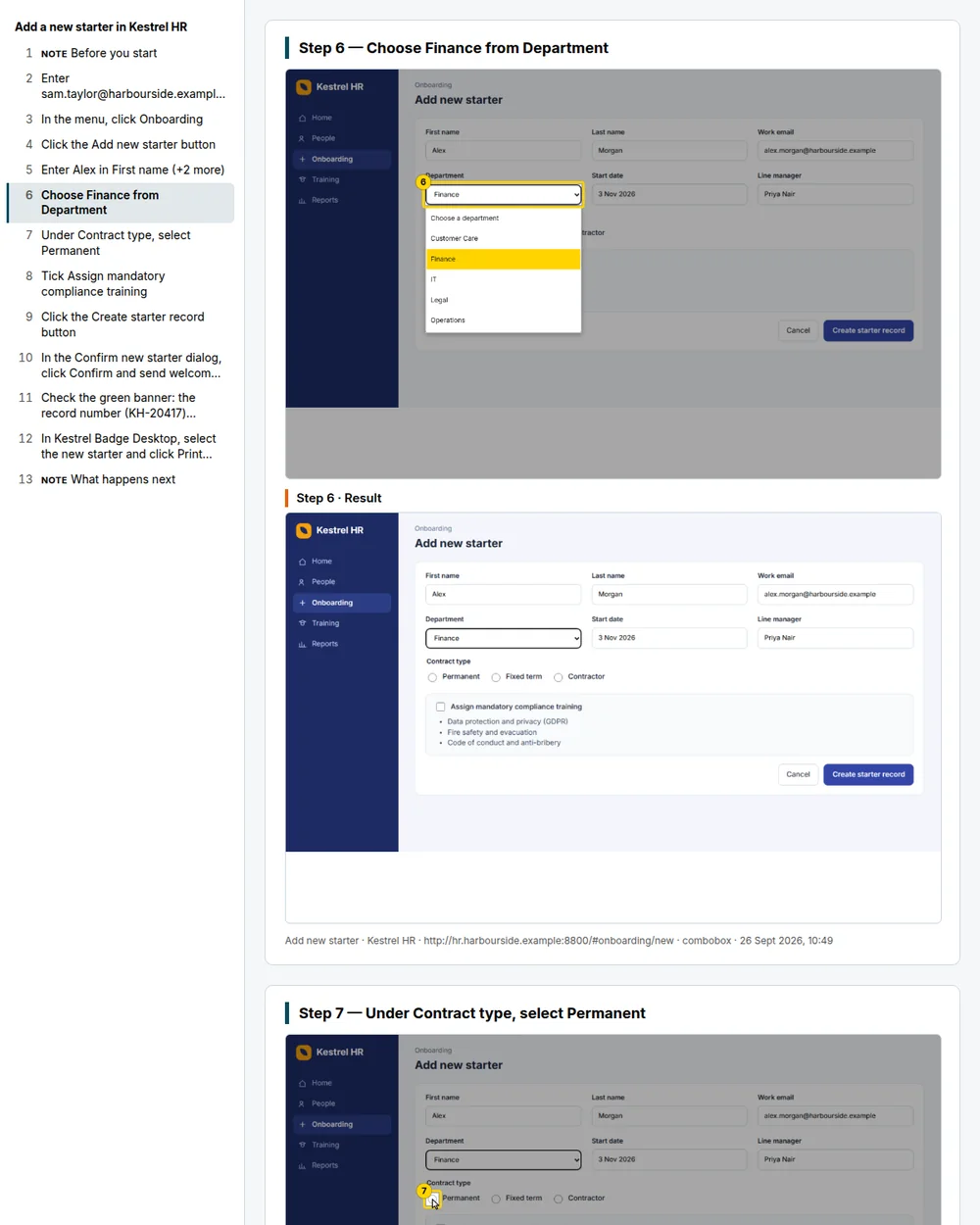
    The exported web page on a wide screen: a list of all 13 steps down the left with step 6, Choose Finance from Department, highlighted, and that step's picture with the redrawn dropdown on the right.
    Web page: the step list follows you
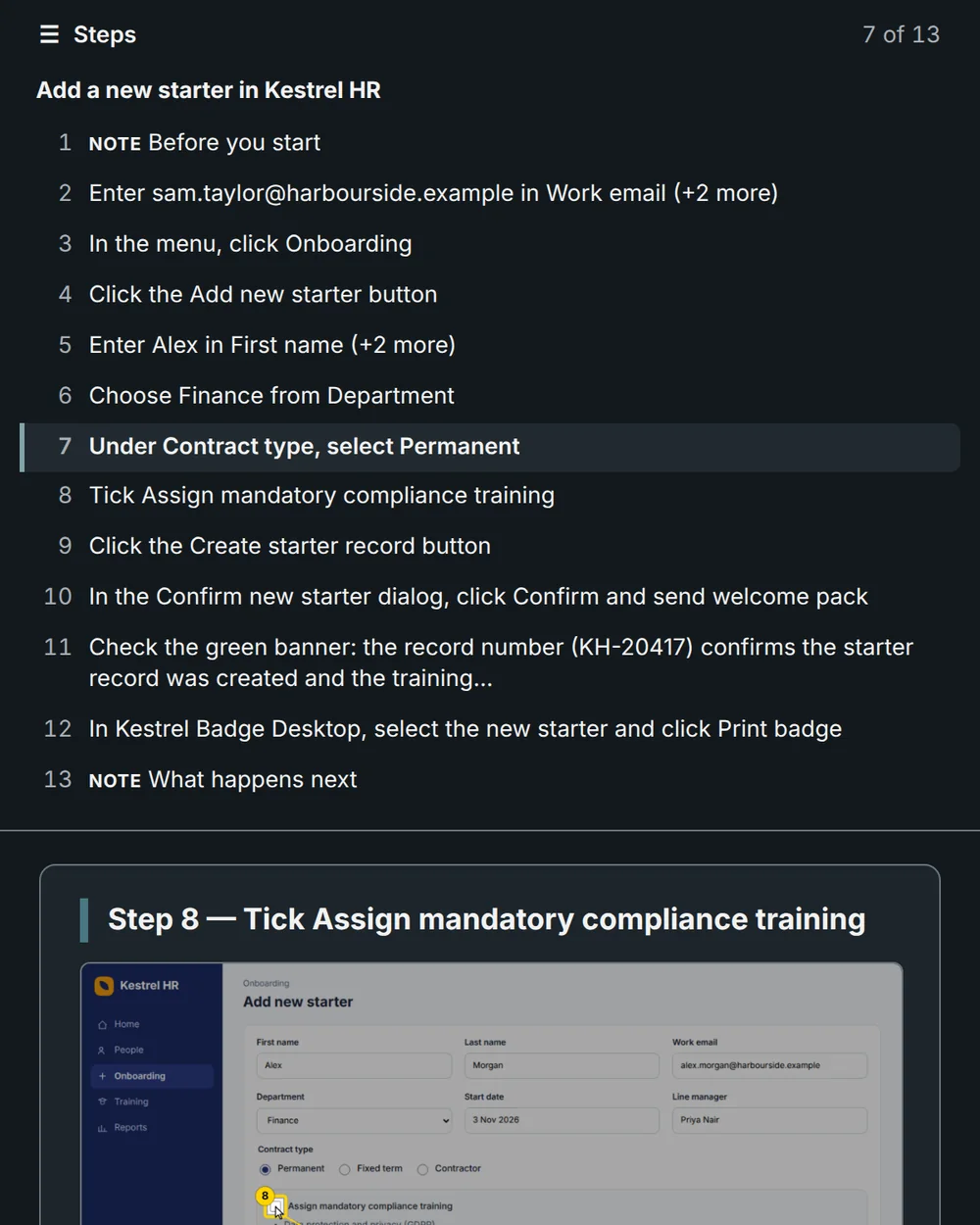
    The same web page on a narrow screen in dark mode, with the Steps button opened to show all 13 steps and step 7 of 13 highlighted.
    On a phone, in dark mode: the Steps button
  4. Train and certify

    Build a SCORM, xAPI or cmi5 package from the same walkthrough and upload the .zip to your LMS. Learners watch, practise at three levels and earn a certificate; your LMS records the result and every step.

    • Six package formats, each with its own remembered settings
    • Pass mark, which levels count, and how the score is worked out
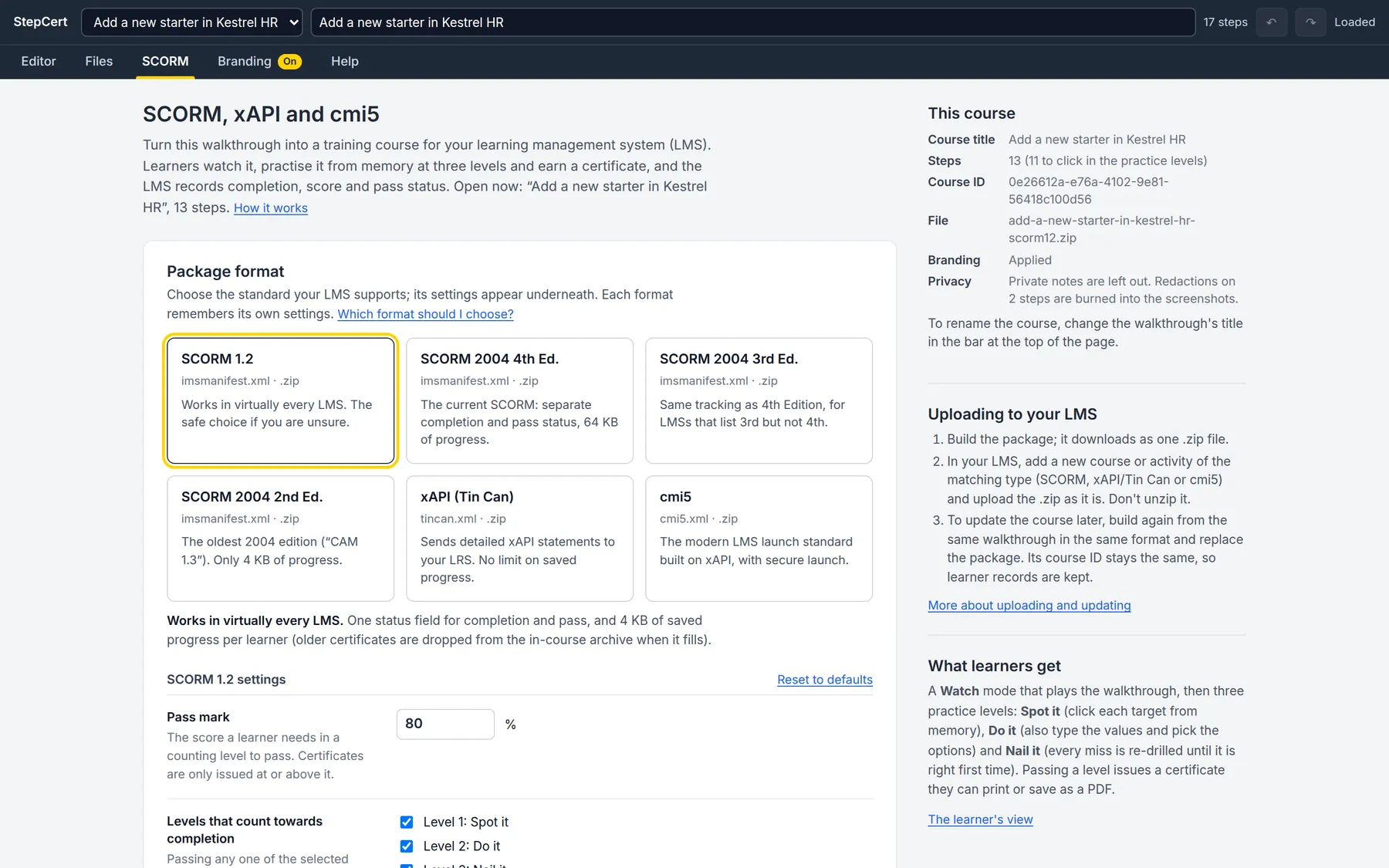
    The SCORM tab with six format cards: SCORM 1.2, SCORM 2004 4th, 3rd and 2nd Edition, xAPI and cmi5, and the SCORM 1.2 settings underneath.
    The SCORM tab. Pick a format, check its settings, build.

Certified proof that people can do the task

Most recording tools stop at the document. StepCert turns the same recording into a course where people learn by doing: first they watch, then they practise from memory at rising levels of difficulty. Each level they pass issues a certificate with their name from the LMS, and the LMS records the result.

Level 2 of the course inside an LMS. The learner asked for a hint, so the Add new starter button has a yellow box. The NI numbers and salaries are blacked out. A panel on the right shows the LMS record: passed, 100 out of 100, and a list of step results.
Level 2 in an LMS, with a hint shown. On the right, what the LMS has received so far.
Watch
Plays the whole walkthrough at several speeds, or step by step with the arrow keys.
Level 1: Spot it Recognition
The instructions are hidden. Learners click each target from memory. Wrong clicks don't cost points; a hint shows the target.
Level 2: Do it Execution
Everything in Level 1, plus typing the values and choosing the options that were recorded. Misses and hints cost points.
Level 3: Nail it Mastery
A full run, then every missed step is practised again in context until it's right first time with no hint. A clean result earns a Certificate of Mastery.
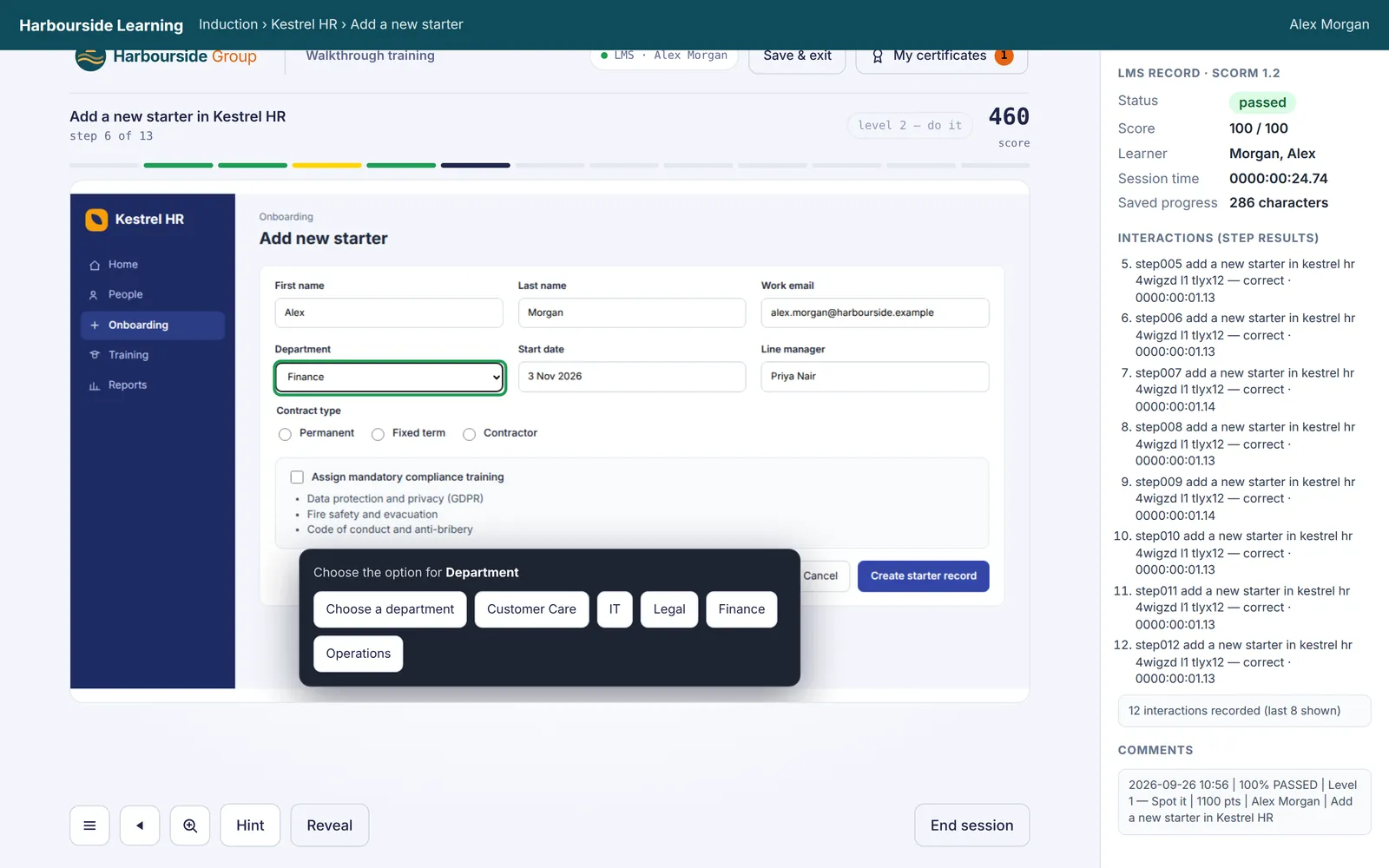
Level 2 asking the learner to choose the option for Department from a list: Choose a department, Customer Care, IT, Legal, Finance, Operations.
Level 2 asks for the real values, not just the right spot.
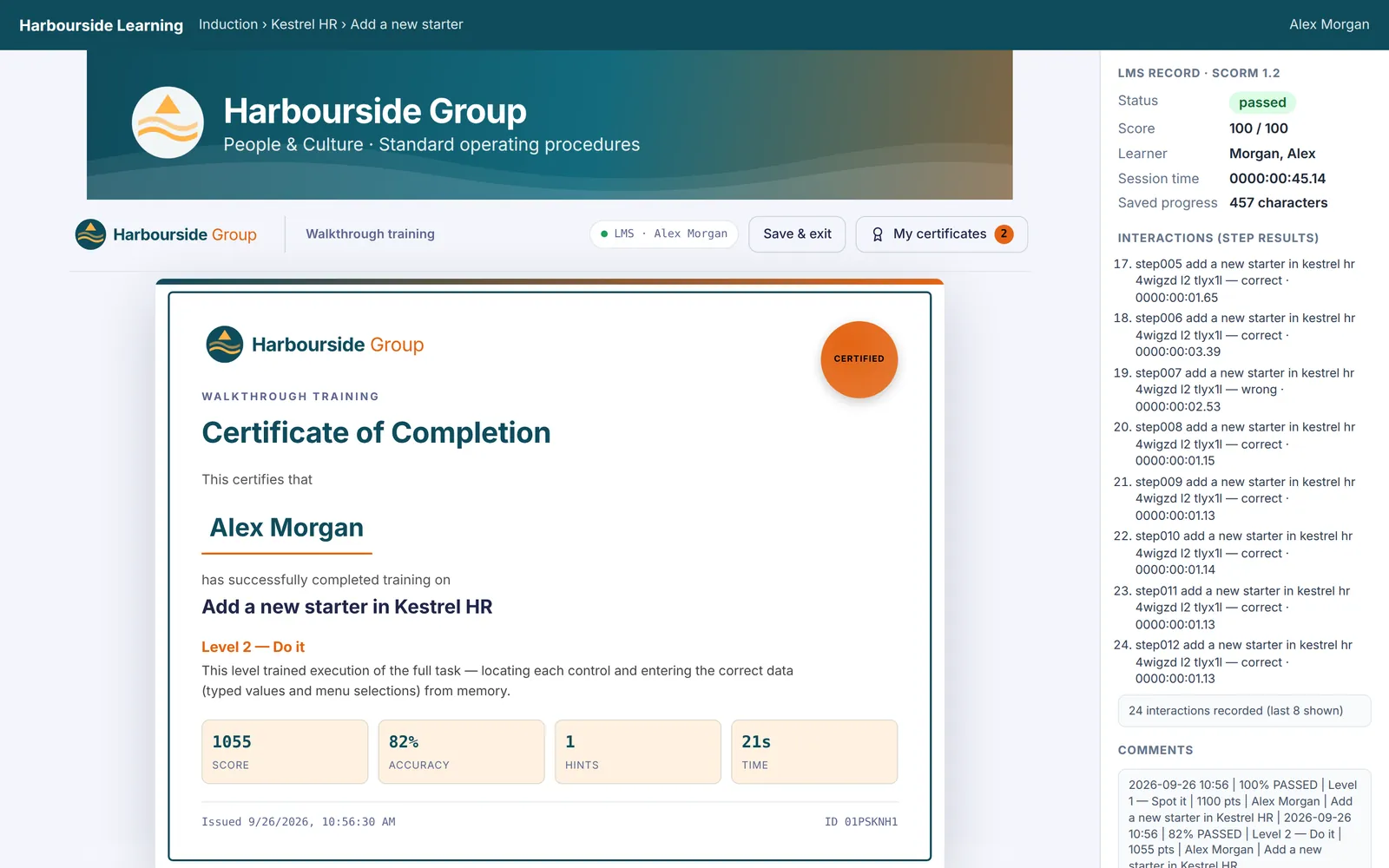
A Harbourside Group Certificate of Completion for Alex Morgan, Level 2 Do it, with score 1055, accuracy 82%, 1 hint and 21 seconds, and a certificate ID.
Certificates carry your logo, the learner's name from the LMS, the level, the result and an ID.
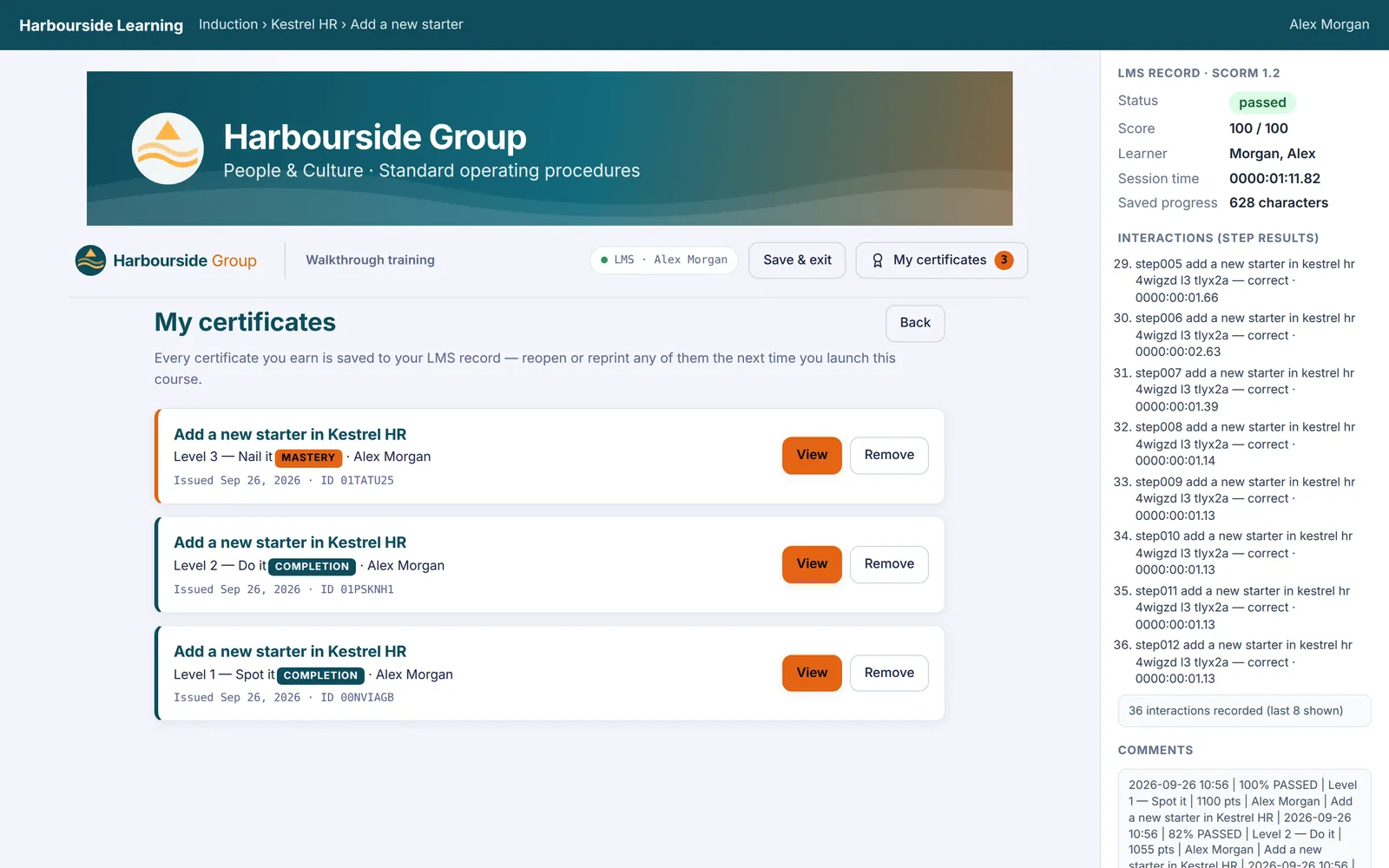
The My certificates screen listing three certificates for Alex Morgan: Level 3 Mastery, Level 2 Completion and Level 1 Completion, each with View.
Every certificate is kept in the learner's LMS record, ready to view or print again.

What your LMS receives

  • Completion, score and pass or fail, using your pass mark
  • Optionally, every step of every run: right first time or not, clicks, hints and time taken, so you can see where people struggle
  • A one-line summary per run, readable in any LMS report: “82% PASSED | Level 2 — Do it | 1055 pts | Alex Morgan”
  • Saved progress, so learners keep their certificates between visits, and a status that never goes backwards
  • Names locked to the LMS account, so a certificate can't be issued to someone else

Four standards, six packages

SCORM 1.2
Works in virtually every LMS.
SCORM 2004
2nd, 3rd and 4th Edition, with completion and pass reported separately.
xAPI (Tin Can)
Detailed statements sent to your learning record store.
cmi5
The modern LMS launch standard built on xAPI.

SCORM manifests are checked against the official ADL schema files. Each format keeps its own settings: pass mark, which levels count, how a fail is reported, and more.

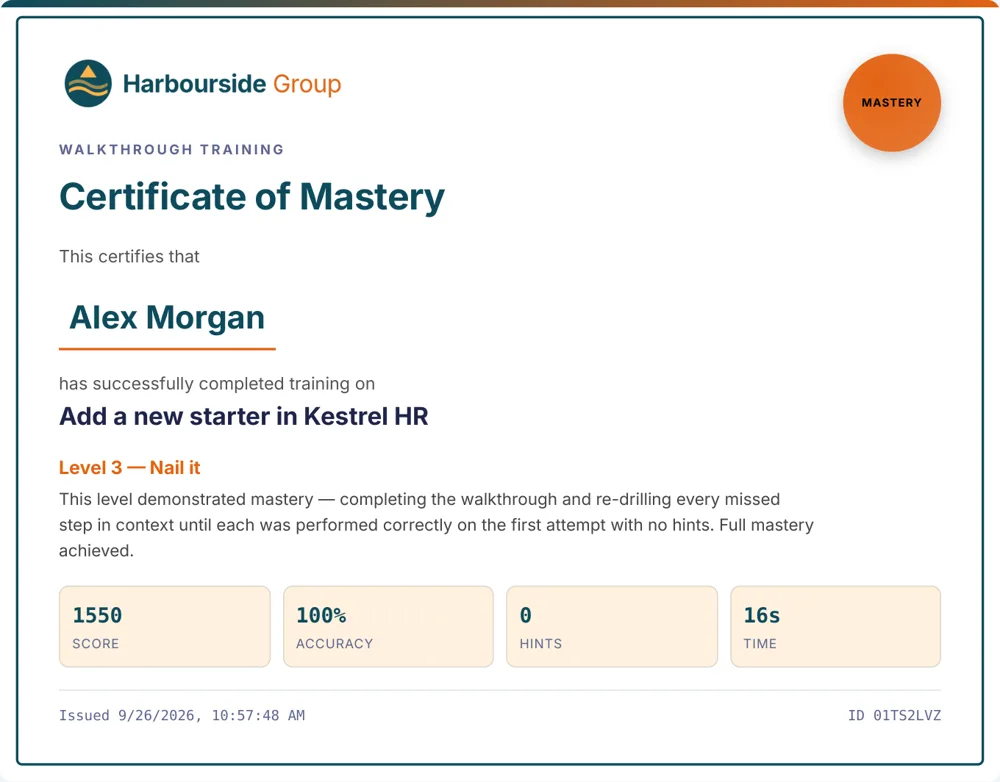
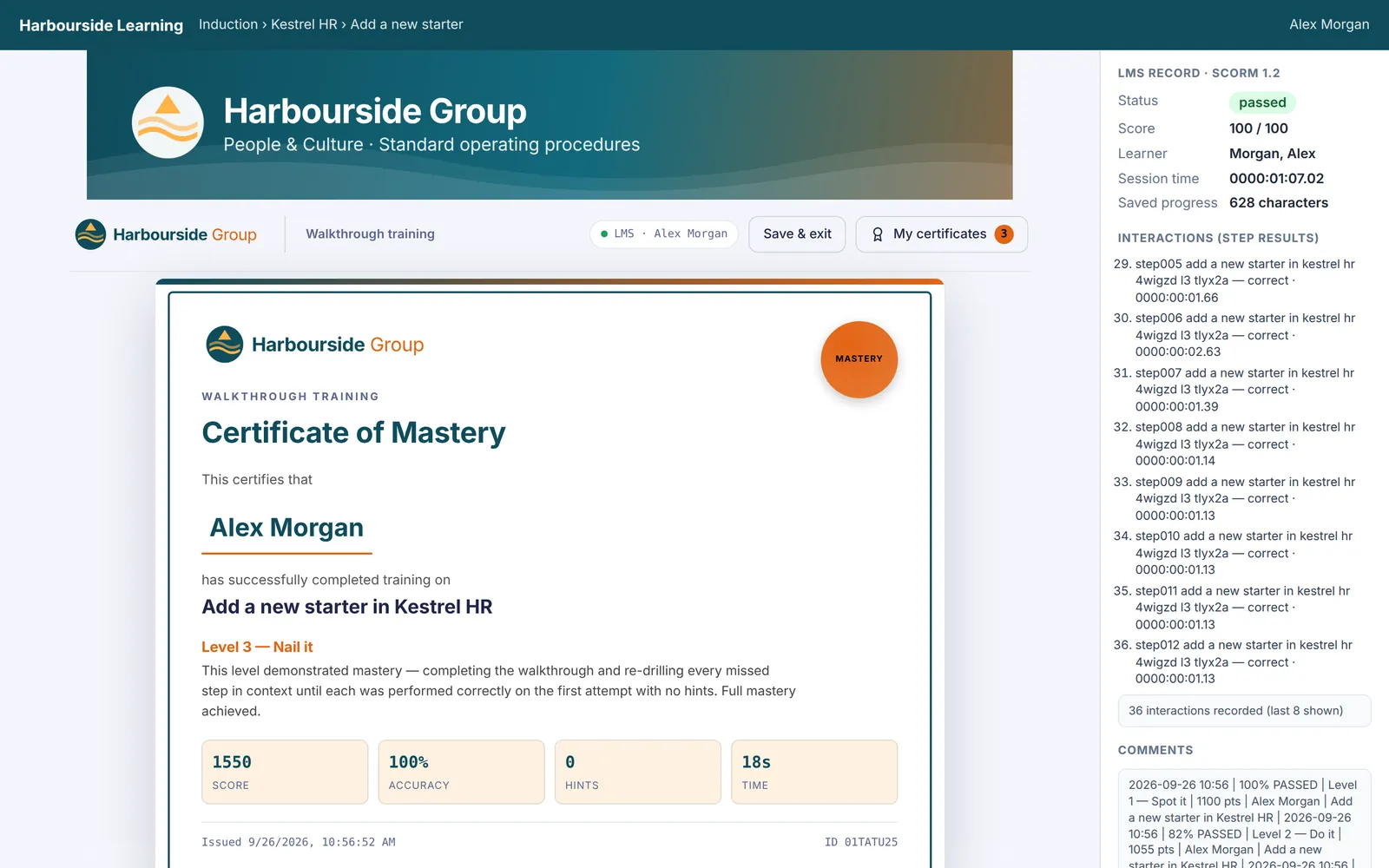
A Certificate of Mastery for Alex Morgan, Level 3 Nail it, 100% accuracy and no hints, shown inside the LMS with the status passed and 36 step results recorded.
Level 3 passed with every step right first time: a Certificate of Mastery, and 36 step results in the LMS.

For compliance training that must show people can do the task without help, count only Level 3, set the pass mark to 90 and score by points, so hints lower the result. For a gentle introduction, let any level count. A course authoring suite such as Articulate 360 lists at $1,449 a year for one person; it does far more, but if what you need is “show people how to do this in our system, and prove they can”, StepCert does that for $99.

Private by design, built for compliance

Screenshots of internal systems are full of names, salaries, account numbers and client data. Cloud recording tools upload every one to their servers. StepCert has no server that could see them: recordings are stored in your browser, and a file leaves your computer only when you export it and send it somewhere yourself.

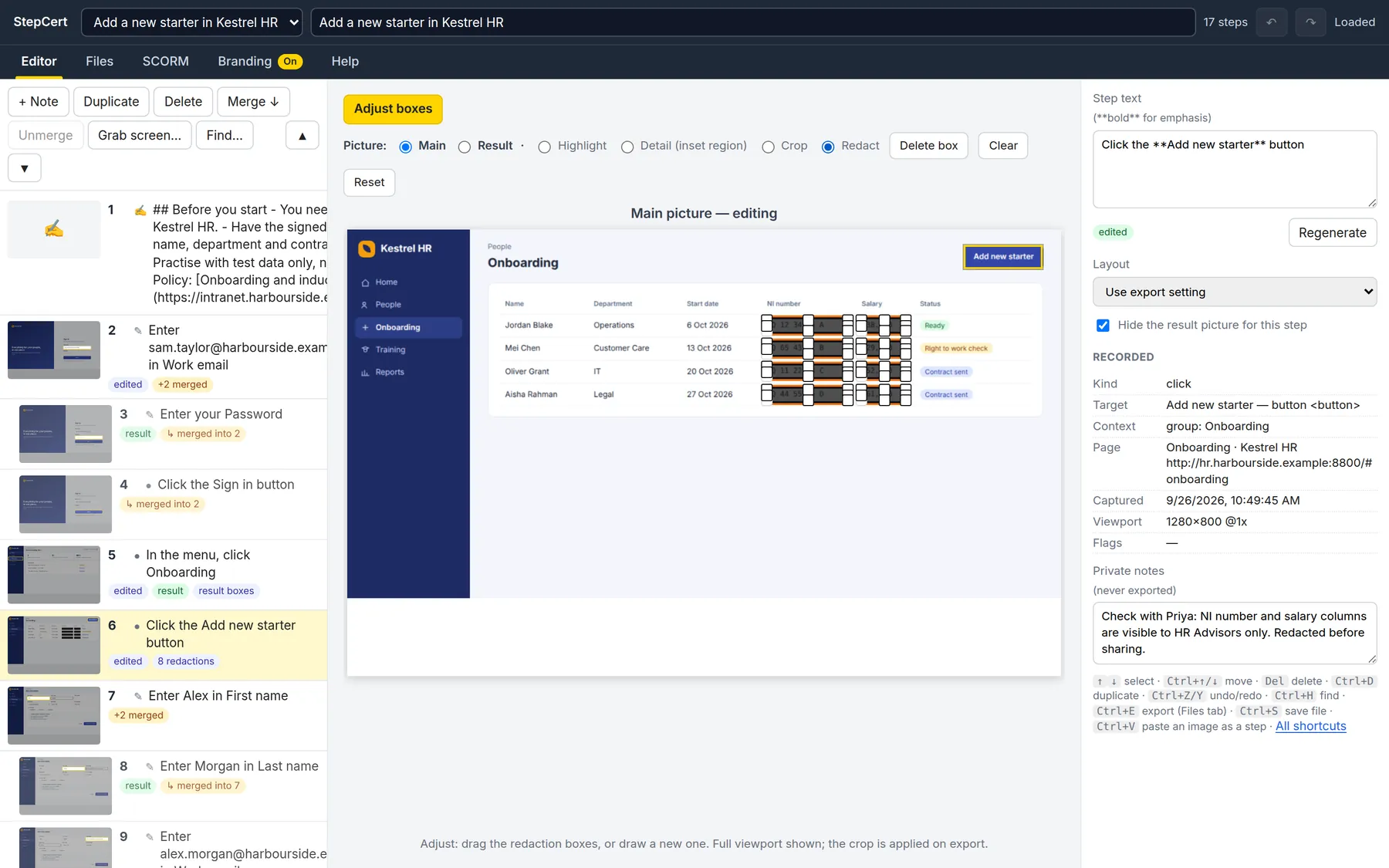
The editor in Adjust mode with the Redact tool selected and black boxes drawn over the NI number and salary columns of the onboarding list.
Redaction boxes over NI numbers and salaries. They're burned into every export and course.
No upload, no third-party cloud
Recordings, screenshots and settings stay in your browser profile. The only thing the extension sends is sign-in information, to check your licence.
Redaction you can trust
Black boxes are painted into the pictures of every document and course, so the hidden detail isn't in the file at all, even if someone unzips it.
Private notes stay private
Notes you keep on a step for yourself are never exported or put into a course.
Evidence for audits
Turn on the metadata line and every step records the page, the address, the control and the time it was captured.
No AI service
Step wording comes from the labels a screen reader would announce, worked out on your computer. Nothing is sent to a model.
Quiet courses
Courses load nothing from the internet and talk only to the LMS or learning record store they're uploaded to.

One recording. Every format your organisation uses.

Pick a format on the Files tab and export. Each one is written on your computer, with your branding, from the same steps. Change a step and export again: every copy stays in step.

Documents

Word .docx
A title page, then each step kept together on a page. Headings in the Navigation pane; ready for your organisation to edit.
PDF
A4 or Letter, page numbers, a page per step if you like. Searchable text and working links.
PowerPoint .pptx
A 16:9 deck with a slide per screenshot, close-up and note. Opens in PowerPoint, Keynote, Google Slides and LibreOffice.
Web page .html
One file with the pictures inside and a list of steps down the side (a Steps button on phones). Works offline and follows the reader's light or dark mode.
Markdown .zip
walkthrough.md and an images folder, for wikis, Git repositories and documentation sites.
JSON .zip or .json
Every step, picture, alt text and note, for scripts, APIs and other tools.

Animations and video

Video .mp4 or .webm
The guide plays by itself: title, each step with its instruction, results and notes. The demo's 13 steps make a video of about 1 MB.
Video guide .html
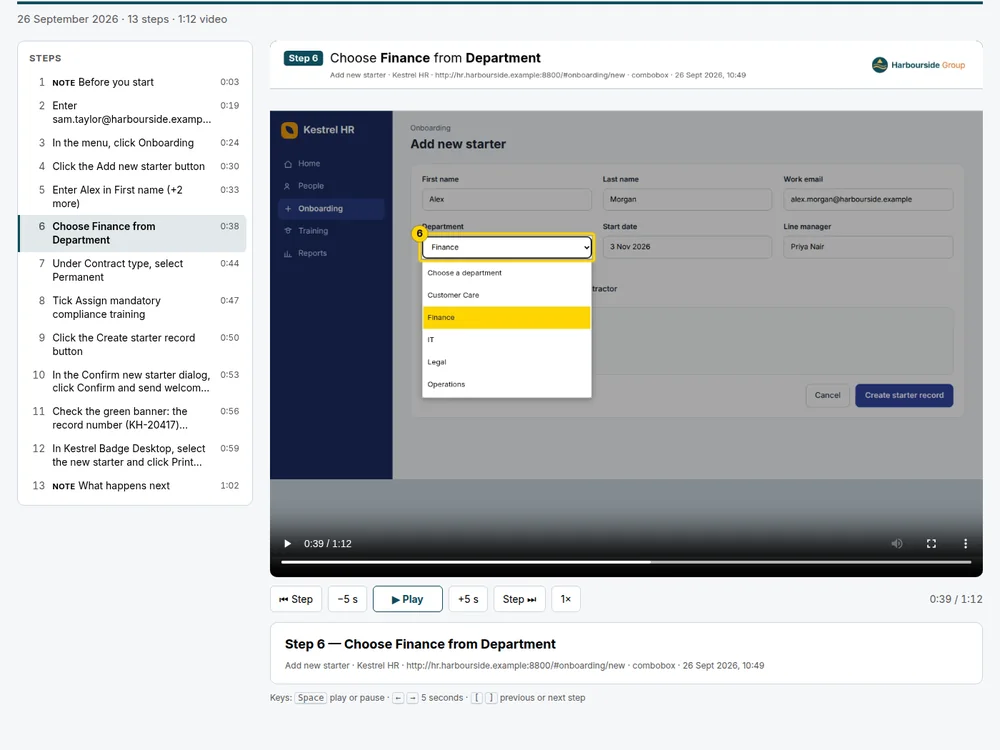
The video in a web page with every step listed beside it, player buttons to go back or forward a step or 5 seconds, and links straight to any step.
Animated WebP
Sharp and small, for web pages and chat.
Animated PNG
Pixel-perfect, and plays inline on GitHub and most wikis.

Courses and projects

SCORM 1.2 and 2004
2004 in 2nd, 3rd and 4th Edition.
xAPI and cmi5
For learning record stores and modern LMSs.
.walk
The editable project, to share, archive or keep editing.
The demo walkthrough playing as an animation: the branded title, then each step of adding a new starter in Kestrel HR with its instruction above the screenshot.
The demo as an animated WebP, exactly as StepCert exported it (705 KB). It's playing now.

Every demo file, and what to look for

We recorded one task, adding a new starter in a sample HR system called Kestrel HR, with the StepCert extension. Then we tidied it in the editor and exported it in every format. Every file below is exactly what StepCert produced. Open them in the apps you already use, or upload a course to your own LMS.

What the walkthrough shows off

  • 13 steps from about 20 clicks, with the wording written automatically
  • A Before you start note with bullet points and a link
  • Two merged steps: sign-in, and the three name fields, each as one numbered picture
  • NI numbers and salaries redacted in the list and its result picture
  • A native dropdown redrawn with the chosen option highlighted
  • A magnified close-up, a per-step layout and a result picture
  • A dialog step: “In the Confirm new starter dialog, click …”
  • A step from a desktop app, pasted in as an image
  • The password recorded as “Enter your Password”, never the value
  • Harbourside Group branding: banner, logo and six colours
  • The metadata line under each step, as used for audit evidence

The course runs in your browser: pass a level to earn a certificate. Outside an LMS, progress is kept only in your browser. The simulated LMS shows what a real one receives as you play.

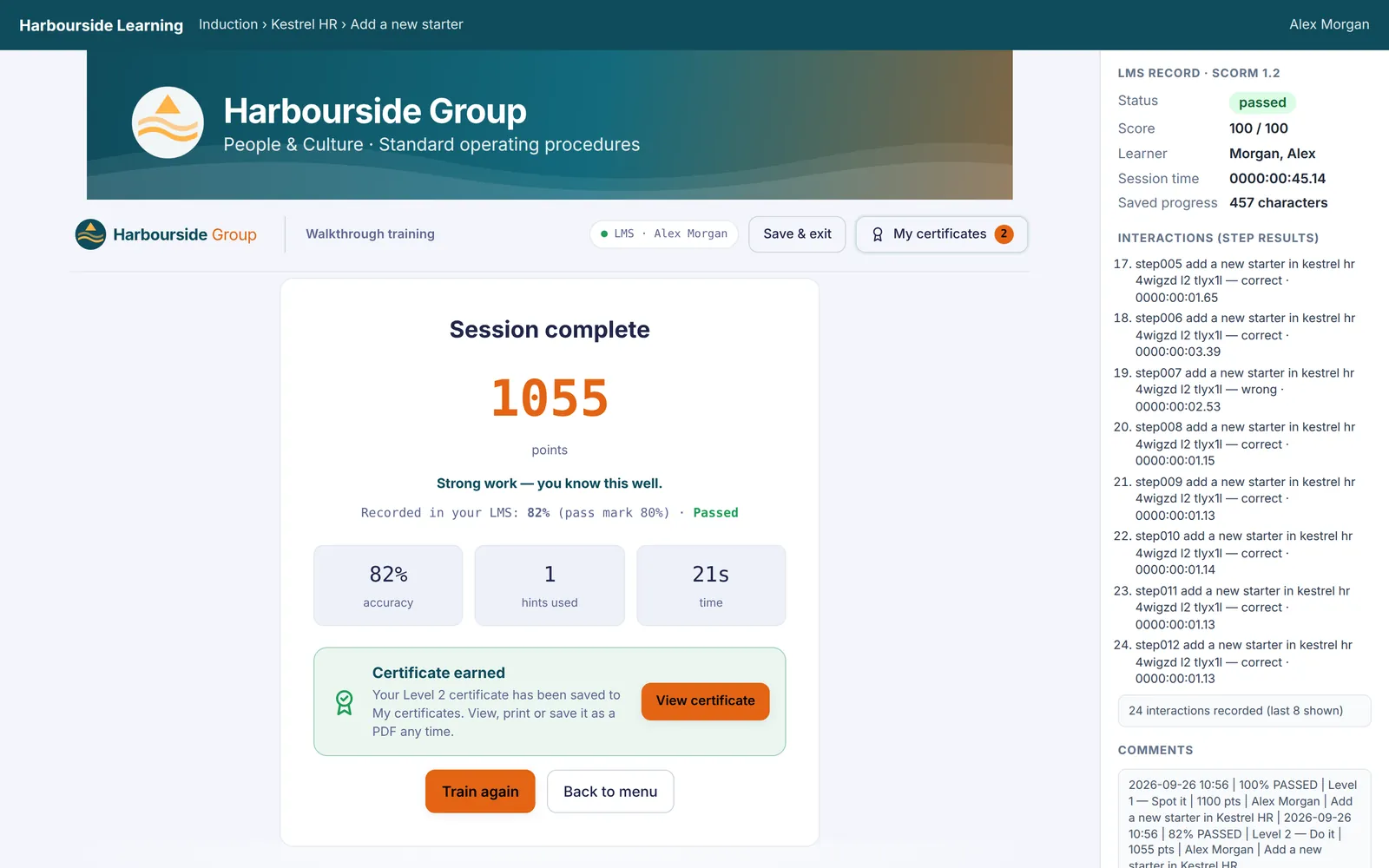
The end of a Level 2 run in the simulated LMS: 1055 points, 82% accuracy, 1 hint and a certificate earned, with the LMS record on the right showing passed, the score and each step's result.
The end of a Level 2 run in the simulated LMS. The panel on the right is what your LMS receives: status, score and every step's result.

Kestrel HR, Harbourside Group and every person in the demo are made up. In Chrome and Edge, StepCert saves video as MP4 directly. The demo was built in a browser without an H.264 encoder, so StepCert saved WebM there; the MP4 here was converted from that WebM file. Upload a course .zip as it is; don't unzip it first. The xAPI and cmi5 packages use the example address learning.harbourside.example as their ID base.

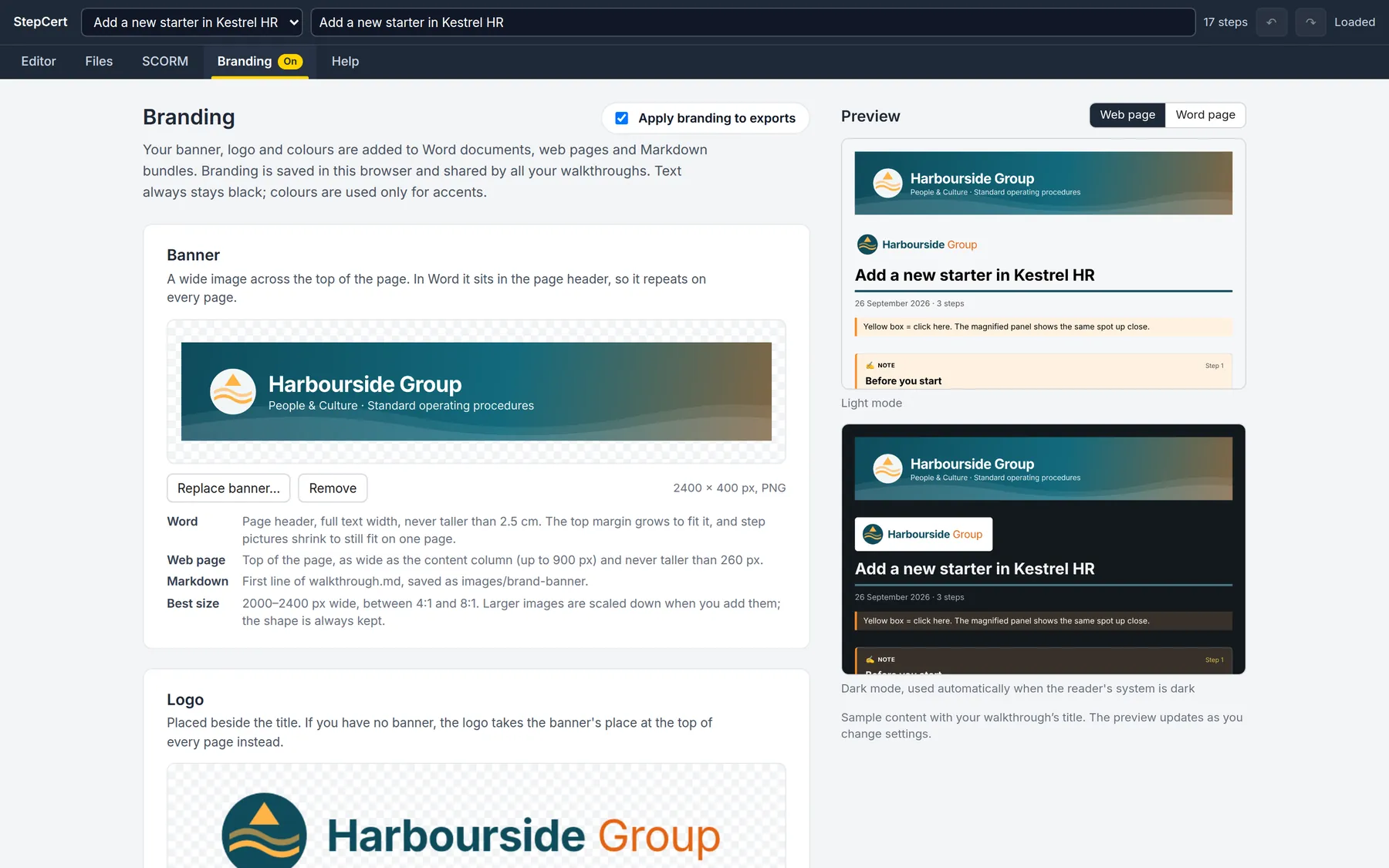
Your logo and colours, on everything

Add a banner, a logo and up to ten colours, each with one job, such as headings, links or the header band. They go into Word documents, PDFs, PowerPoint decks, web pages, Markdown bundles, animations, courses and certificates. StepCert checks every colour for contrast and adjusts any that would be hard to read, so a brand colour never makes text disappear.

Prefer your own highlight colour instead of yellow? Switch on screenshot colours and the boxes, badges and redactions use your palette too.

Got a brand deck? Let an AI pick the colours for you

Paste this prompt into ChatGPT, Claude, Copilot or Gemini and attach your brand guidelines or brand deck (PDF or PowerPoint). It reads your palette and tells you which colour goes in which box on the Branding tab.

You are helping me set up the brand colours in StepCert, a tool that makes step-by-step guides, web pages and training courses. I've attached our brand guidelines (or brand deck). Read the colour palette from it: every named colour with its hex code (convert RGB, CMYK or Pantone values to hex if that's all it gives).

StepCert has ten colour boxes, each with one job. Text is always black (near-white in dark mode), so brand colours go on bars, rules and backgrounds, never on body text:

1. Primary: the rule under the document title and the bar beside each step heading. Use the main, strong brand colour.
2. Secondary: the bar beside "Result" picture headings and the numbers in numbered lists. A second strong colour that differs clearly from Primary.
3. Highlight: the bar on the legend and on note callouts. A bright accent colour.
4. Highlight tint: the background behind the legend and notes. A very pale colour (or leave blank for a pale version of Highlight). Black text must read easily on it.
5. Links: links inside notes. A dark, saturated colour that reads well on white.
6. Divider: thin lines between steps and around pictures. A light grey or pale neutral.
7. Header band: the strip behind the banner or logo at the top. Use it if our logo is white or light, so it sits on a brand colour.
8. Redaction: fill of the boxes that hide private details on screenshots (only used if screenshot colours are on). A dark, solid colour.
9. Dark mode background: the page background when a reader uses dark mode. A very dark version of a brand colour (or blank).
10. Dark mode surface: cards and callouts in dark mode. Slightly lighter than the dark mode background (or blank).

Please:
- List the colours you found, with their names and hex codes.
- Give a table: box number, box name, the hex code to type in, the brand colour's name, and one line on why it suits that job.
- Leave a box blank when no brand colour suits it, and say so. Three to five colours are plenty.
- Warn me about any colour that would be too pale for a bar or rule on white, or too dark to show in dark mode.
- Tell me whether to switch on "Use Highlight and Redaction on screenshots": only if our highlight colour is as bright and visible as yellow, orange, lime or cyan.

Check the suggestions in the Branding tab's live preview: StepCert shows each colour on a web page in light and dark mode and on a Word page, and nudges any that would be hard to read.

The Branding tab with the Harbourside Group banner and logo and live previews of the web page in light and dark mode.
The Branding tab previews light and dark mode as you go.

Everything else it does

The details that make a guide you'd be happy to send, without an afternoon of cropping and arrows.

Recording

  • Step text from the accessible names of buttons and fields: “In the Confirm dialog, click Delete”
  • Native dropdown lists redrawn, with the choice highlighted
  • Result pictures after navigation, selections and dropdowns
  • Across tabs, windows and frames
  • Capture now, add note, pause, undo, and insert steps in the middle
  • Keyboard shortcuts for start, pause, capture and undo
  • Optional: record dialogs opening, Tab key presses, strip query strings from addresses

Editing

  • Drag to reorder; undo and redo up to 100 changes
  • Move or draw the highlight, the close-up area and the crop
  • Redaction boxes, burned in on export
  • Merge several clicks into one numbered figure
  • Per-step layout: composite, overview and detail, overview only, text only
  • Find and replace across every step
  • Paste an image or grab any window for steps outside the browser
  • Notes with headings, bullets, bold and links; private notes for yourself

Output

  • Magnified close-up, cursor arrow and dimming around the target, all adjustable
  • Image quality presets for sharp printouts or small email attachments
  • Step numbers, a legend and an optional metadata line for audits
  • Alt text on every picture; headings that screen readers and outlines understand
  • Web pages that follow light and dark mode and print cleanly
  • Stable course IDs, so updated packages replace the old ones in your LMS

Everyday use

  • Built-in help for every feature and setting, with examples and search
  • Works offline for up to 7 days; use it on up to 3 browsers
  • Duplicate a walkthrough for variants of the same process
  • Documents and courses keep working if you ever cancel
  • Chrome, Microsoft Edge and other Chromium browsers

How StepCert compares

Other tools are good at what they do. Here is where they differ, using each company's own published plans for one person.

FeatureStepCertScribePro PersonalTangoPro, 1–2 usersioradIndividual
Price for one person$99 a year$300 a year$264 a year$200 a month
Where screenshots are keptYour computerScribe's cloudTango's cloudiorad's cloud
Word, web and MarkdownAll threeWeb and MarkdownWeb and MarkdownWord; web on Enterprise
LMS coursesSCORM 1.2 and 2004, xAPI, cmi5Not listedNot listedSCORM on Enterprise only
Practice and certificatesThree levelsNot listedNot listedPractice modes
Records desktop appsScreen grab onlyYesYesYes
Also in StepCert
PDF, PowerPoint and videoPlus animations and JSONNot compared: we checked only the rows above on the other tools' pricing pages.
Editable file to hand on.walk file
Redaction burned inYes
Your logo and coloursDocuments, courses, certificates
Step results in your LMSRight first time, hints, time

Checked on 25 September 2026 on each company's pricing and feature pages, in US dollars, billed annually where there is a choice. “Not listed” means we couldn't find it on those pages; features and prices change, so check before you decide. Scribe, Tango and iorad are trademarks of their owners, who don't endorse StepCert.

Where others are the better choice

If you mostly document desktop software, Scribe, Tango and iorad all record desktop apps automatically; StepCert records the browser and can add a screen grab from any other window. If you want guides that live as shared links with viewer analytics, the cloud tools do that and StepCert doesn't: StepCert gives you files you own.

Work out what it saves you

Put in your own numbers. The estimate uses the time you save per guide, so it doesn't count the course you'd otherwise have to build separately.

One plan with everything in it

$99a year

For one person. Unlimited walkthroughs, exports, courses and learners.

  • Recording in Chrome, Edge and other Chromium browsers
  • Word, PDF, PowerPoint, web page, Markdown and JSON export
  • Animated PNG, animated WebP and video
  • SCORM 1.2, SCORM 2004, xAPI and cmi5 courses
  • Practice levels, certificates and step-by-step LMS records
  • Editable .walk files to share and keep working on
  • Your banner, logo and colours
  • Every update while you're subscribed
  • Email support from the people who make it

Secure checkout by Stripe. Cancel any time from your account page. Documents and courses you've already made keep working after you cancel. If StepCert isn't right for you, email us within 30 days for a full refund.

Buying for a team or a school? We offer bulk licences and educational discounts. Email sales@stepcert.com.

Each person needs their own licence; anyone with StepCert can open the .walk files you share.

Questions

Are my recordings or screenshots uploaded anywhere?

No. Recordings, screenshots and settings are stored in your browser on your computer. The only thing the extension sends anywhere is sign-in information: your email address and licence key once, when you sign in, and then a sign-in token about once a day to check that your licence is still active. Files leave your computer only when you export them and send them somewhere yourself. To back up a walkthrough or move it to another computer, save it as a .walk file.

Does that help with GDPR and client confidentiality?

It removes a whole category of risk: there is no StepCert cloud holding copies of your screenshots, so there's no extra processor to assess for them. You still decide what goes into the files you share. Redact personal details in the editor (the boxes are burned into every export and course), keep reminders in private notes, and record with test data where you can. Have your own data protection lead confirm what your organisation needs.

Can a colleague finish or update a walkthrough I started?

Yes. Save it as a .walk file on the Files tab and send it. When they open it in their StepCert it arrives as a new walkthrough with every step, box, redaction and note. They can reword steps, press Continue to record more, insert steps in the middle, and export or rebuild the course. The course ID travels in the file, so a rebuilt course replaces the old one in your LMS.

What does a certificate actually prove?

That the named learner completed a practice level of the task at or above your pass mark: at Level 1 they found every control from memory, at Level 2 they also entered the right values, and at Level 3 they repeated any missed step until it was right first time. Each certificate shows the learner's name (locked to their LMS account by default), the level, the score, accuracy, hints, time and an ID. The LMS keeps the pass status and, if you choose, a record of every step.

Which browsers does it work in?

Chrome, Microsoft Edge and other browsers built on Chromium.

Can I use it on more than one computer?

Yes. Sign in with your email address and licence key on up to 3 browsers at a time, for example at work and at home. Signing in on a fourth signs out the one you used least recently. StepCert keeps working for up to 7 days without an internet connection.

Can it record desktop apps?

StepCert records web apps in the browser, across tabs and windows. For a step outside the browser, use Grab screen… in the editor to capture any window or screen, or paste a screenshot, then draw the highlight. The demo walkthrough has one such step.

Will the course work in my LMS?

If your LMS accepts SCORM 1.2, SCORM 2004, xAPI (Tin Can) or cmi5 packages, yes. StepCert builds packages to the published standards and checks SCORM manifests against the official schema files. Upload the .zip the same way you'd upload any other SCORM or xAPI course. To try one first, upload a package from the demo to your LMS, or to a free test account at a SCORM testing service.

Can I update a course after learners have started?

Yes. Each walkthrough keeps a fixed course ID, so when you fix a step and build again in the same format, the new package replaces the old one in your LMS and learner records carry over.

Why is the demo video MP4 and WebM?

In Chrome and Edge, StepCert makes MP4 video. Where the browser can't encode H.264, it saves WebM instead and says so. The demo files were made in such a browser, so the WebM file is StepCert's own export and the MP4 was converted from it.

Does it use AI?

No. The step text comes from the names a screen reader would announce for each button and field, such as “Click the Save button”. It's worked out on your computer, and you can reword any step.

What happens if I cancel?

Everything you've exported and every course you've uploaded keeps working. They're ordinary files and never check your licence. You can cancel any time from your account page, and you won't be charged again.

Can I get a refund?

Yes. Email us within 30 days of buying and we'll refund you in full.

Do I get an invoice?

Stripe emails a receipt when you pay. You can download invoices and update your card from your account page.

I've lost my licence key

Go to Manage your licence and enter the email address you bought with. We'll send the key to it.

Record your first walkthrough today

Do the task once. Share it everywhere. Prove people can do it.

Try the live demo